
How to Create a Bulk Software Installer
You will learn how to install dozens of awesome, free applications on your computer in 5 simple steps. No money, 200 Point IQ, or Back-Breaking Labor required!
How You can Take the Greatest Notes in the World
Use this Simple Technique to Record, Organize, and Recall Everyting
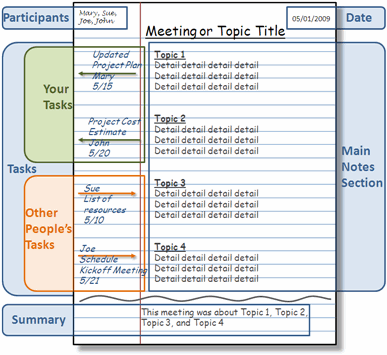
The information age is upon us. Every day I take in or crank out so much information that it is very difficult to keep it all together. With all of the computers, PDAs, and voice recorders available, I rely on a plain old notebook as my main weapon in the battle to record, create, and organize information. Even though my notebook is simple, my method of taking notes is anything but. I’m going to show you a quick way to go take great notes that will keep you on top of everything.
My Approach to Taking Great Notes
I use a combination of a few approaches modified into my own special method. I base it mostly on the Cornell Note Taking method. Since I’m not a student, I adapted it for taking notes at business meetings and brainstorming projects.
I start out with regular lined notebook paper. I break the page into four sections:
Top
Notes
Action Items
Summary
Top Section
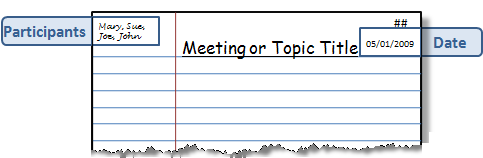
In Top the section I write the following:
Top Left – Attendee names (if it’s a meeting)
Top Center – Meeting or Project title
Top Right A – Page Number
Top Right B – Date
Notes Section
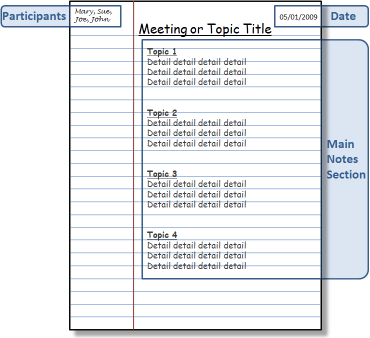
I use the main section of the page to taking notes or writing ideas and content.
Action Items
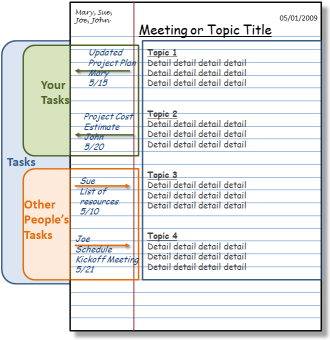
I use the left margin of the page for Action Items. These are typically To-Do’s or Open Questions. If there is a task for me, I draw an arrow pointing out of the Notes section (right to left). Then, I write the task name, recipient (if any), the due date. If it’s a task for someone else I draw an arrow pointing into the Notes section (left to right). Then, I write the responsible person’s name, the task name, recipient (if it’s not me), and the due date.
Summary Section
When the session is over I draw a wavy line below the Notes section. I write a brief one or two line summary at the bottom of the page.

After the Meeting
I also transfer my Action Items to my rolling To-Do list. There are many great ways to record your task list, I love RememberTheMilk. Here is a tutorial showing how use RememberTheMilk to manage your tasks.
Cataloging Notes
Having a notebook full of notes is not very helpful if you can’t find what you need. I always leave a few pages at the back each notebook to create an Index. When I’m done with a meeting I go to the back and write the Page Number, Topic, and Date. This creates a scannable Index that I can use to quickly find notes by topic or date.
Extra Credit
At a lot of meetings that I attend people write and draw important information on flip charts or white boards. At the end of these meetings I usually pull out my phone and grab a decent picture of the information. Then I upload the picture to my Evernote account. Then the picture is available back at my computer before I even get to my desk. Then I print it off and tape the page to the back of the notes from the meeting. Here is a tutorial showing how to use Evernote to capture information anywhere and recall it any time.
Conclusion
This whole process only adds a few seconds onto the basic note taking process, but provides great benefits down the road. When I need to recall something from a project meeting that happened a month ago I just open the Index, find my page and go to the notes. At a moment I can see who was there, when it happened, what was said, and who was responsible for what. That’s certainly worth 45 seconds after an hour long meeting in my opinion.
Here is an article that I wrote about the virtues of taking notes and some of the other cool things that you can do with them.
If you have any other good note taking ideas please add them in the comments section.