
Sync Files on Multiple Computers Using DropBox – Video Tutorial
Learn how to keep your files in sync across multiple computers with this Dropbox Tutorial.

Get Your New Computer From Box to Awesome in a Flash
This article links to several resources that will help your new computer go from the box to maximum usefulness as fast as possible.
DropBox for iPhone – Your Files Truly are Everywhere Now
This is a review of the Dropbox app for iPhone.

26 Best Free Mac Applications
Who Says Macs have to Cost More?
Introduction
I have been a heavy Windows user for the last decade or so (HP UNIX before that). I bought a 15 inch Macbook Pro to use at home exactly six months ago. (Still use an XP machine at work.) Over the last six months I have been adjusting to the Mac Operating System with mixed results (mostly good). My biggest challenge was learning which application to use to do things. Again, this has been a mixed bag of results.
I have been able to find applications to replace most of my Windows applications without much problem. It’s pretty easy to find applications that will do anything I need, however the prices of many of these applications are a little bit nuts. (Coda? $100 for a glorified NotePad? Yikes!)
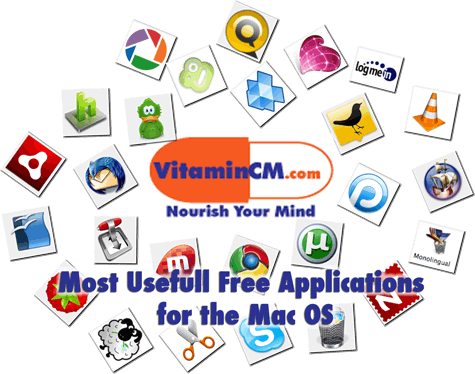
Here a list of extremely good and useful FREE applications that have added a lot to my experience of switching to a Mac.
I grouped my favorite free Mac applications into the following categories:
- Internet
- Communication
- Productivity
- Multimedia
- System Utilities
- Blogging
Internet


Firefox – I guess I’ll lead off with the grand daddy of ’em all. Firefox is the model for all free software. It is absolutely my favorite piece of software ever. Free, cross platform (Mac, PC, Linux), extensible beyond belief. First of all, I don’t like Safari or Internet Explorer, so this is a must on any computer that I use.
Adobe Air – Adobe Air uses Flash and some other magic sauce to take web based applications and turn them into desktop applications. There is a growing list of small, simple applications that give you control of many of your favorite web services. (See Tweet Deck above.)
Alternatives – Google Chrome, Opera, Flock
Productivity



Open Office – I really despise the Mac version of Microsoft Office and iWork is cute, but not good enough for me. Open Office does make a "barely acceptable" substitute for the Windows version of Office if you absolutely refuse to part with any cash. It is definitely a more useful, and ugly tool than iWork. Seriously, don’t be a cheap skate, this is somewhere that you should spend a few bucks.
Evernote – Evernote allows you to easily capture information in any environment using whatever device or platform you find most convenient, and makes this information accessible and searchable at any time, from anywhere. Visit my Evernote tutorial to see how useful it can be.
Plaxo Sync – If you have Contacts, Appointments, Notes, and To Do’s on your Mac and some other places, Plaxo will automagically sync them all. What other places you say? Here’s a few that you may have heard of: Gmail, Google Calendar, Yahoo, Hotmail, Windows Live, and AOL. Do you have scattered out-of-sync data across any of those services? Well I don’t.
Alternatives – Neo Office, Google Docs, Zoho Office.
Communication




Skype – Skype is the king of the hill when it comes to Voice over IP applications. Besides making free (or really cheap) phone calls, you can do a lot of other useful things with Skype. Video Conference, Instant Message, Remote Control other computer, and more (*using a combination of plugins).
Adium – Awesome multi-network Instant Messenger tool. You can connect to all of your IM networks (AOL, Yahoo, MSN, Google, ICQ, Jabber, and Facebook ) to let you chat with any of your contacts. Clean, light, and simple; everything you need. Not quite as good as Digsby for Windows, but still great.
TweetDeck – This is a desktop application, built on Adobe AIR, that allows you to view and interact with your Twitter and Facebook streams. TweetDeck splits your stream into multiple columns, so that you can see what’s happening from multiple vantage points. If you follow a lot of people, this will help you keep it all straight.
Thunderbird – I’m a huge Gmail fan, but if you must use a desktop email application, this is a good choice. Mozilla’s open source answer to Microsoft Outlook. You can do Email, Contacts, and Calendaring very similarly to Outlook. It’s built using the same open, extensible platform as Firefox, so there is a big collection of extensions to augment it’s functionality. Turbocharge Thunderbird with these plug-ins.
Alternatives – Meebo, Gmail
Multimedia – Photos, Audio, and Video






Picasa – First of all, I’m not a fan of iPhoto. I just don’t like the way it works. Manage your photos like a champ. If you have more than 10 photos on your computer, you MUST get Picasa. Organize, search, display, and share your photos in a way that will make you really appreciate your camera.
VLC – This is a stripped down media player that will play any audio or video format ever created flawlessly. It opens lightning fast and begins playing your files. Light, fast, simple!
Boxee – Boxee’s free software lets you navigate all your personal movies, TV shows, music and photos, as well as streaming content from websites like MLB, Netflix, Pandora, Last.fm, and Flickr from one screen with a remote. This HD content can be played on your TV by hooking your Mac to the inputs on the back. If you have an iPhone, there is a remote control application that allows you to control it all from your couch (Of course it’s free!).
Miro Player – Open-source, non-profit video player and podcast client. Torrents made easy, RSS made beautiful, with tons of gorgeous HD video.
Hulu Desktop – Hulu Desktop is a great viewing experience for your personal computer. It’s optimized for use with an Apple remote control, allowing you to navigate Hulu’s entire library with just six buttons. You know you want some.
Hand Brake – If you want to make "backup copies" of any of your "legally purchased" DVDs, this is the simplest application out there. You can make copies that will play on your iPod, iPhone, PSP, or any other portable device from Hand Brake.
Alternatives – Songbird
Utilities








uTorrent – The best way to download huge files is with BitTorrent technology. My (current) favorite BitTorrent client is uTorrent. Nothing spectacular, just a solid tool that fills an important role.
DropBox – Put your files into your Dropbox on one computer, and they’ll be instantly available on any of your other computers that you’ve installed Dropbox on (Windows, Mac, and Linux too!) If you work on more than one computer, this is a life saver. See how incredibly Dropbox syncs files on multiple computers in this tutorial.\
Monolingual – I only operate my computer in one language; English. So why do I need a bunch of localization files for the Mac OS
wasting space on my hard drive? Monolingual is a handy utility that reclaims this wasted space in a few simple clicks. It also gets rid of files for non Intel processors, assuming you’re on a relatively new machine. I usually run it after I install any system upgrades or new software.
Filezilla – My favorite FTP client. Quick, simple, and easy. There are probably some better free FTP clients for Mac, but it does everything I need, and works just like the Windows version, so there was no learning curve.
AppCleaner – One of the weirdest things about a Mac is the way that you uninstall applications. I don’t see any obvious way to completely and cleanly uninstall software from my machine. That is where AppCleaner comes in. Just go to your Applications folder and drag the unwanted application onto the AppCleaner window and it’s gone. It also cleans up all of those hard to find preference files too.
Smultron – I miss NotePad++ from Windows so much. It is a simple, clean text editor that allows me to edit HTML, PHP, CSS, and any other format files. Smultron is the best free text editor that I have found on the Mac platform yet. I’m desperately hoping that someone will give me a better suggestion in the Comments below.
LogMeIn free – LogMeIn Free gives you fast, easy remote access to your PC from any computer with an Internet connection. Pretty handy way to get to your personal files from your Work, Friend’s, or Family’s computer.
Chicken of the VNC – Chicken of the VNC is a VNC client for Mac OS X. A VNC client allows one to display and interact with a remote computer screen. In other words, you can use Chicken of the VNC to interact with a remote computer as though it’s right next to you. The VNC server is built right into the Mac OS. Just go to System Preferences> Internet & Network> Sharing and turn on the Remote Management service. Check out this tutorial on some of the cool things that you can do with VNC software. (It’s Windows based, but all of the principles are the same.)
Zipeg – Zipeg is the easiest way to open Zip, Rar, and any other type of archive files. Plus, it has a cool little sheep for a logo. Yeah, I’m sure there are tons of other good ones, but I really like the little sheep.
Quicksilver – Just start typing the first few letters of a program, file name, or folder and Quicksilver will pull it up in front of your eyes. Then, just hit enter and open up whatever you were looking for. There’s a reason the word quick is in the name. This will shave hours of hunting and clicking through menus and folder off your life.
Alternatives – Transmission, Cyberduck
Blogging



Qumana – I still have not found a desktop blogging tool that I love on the Mac, but I just recently discovered Qumana and like it a lot. I has most of the features that I need. The biggest one that it doesn’t have, (code snippet clipboard) I have been able to get with Snippely.
Snippely – Snippely is a basic text and code organizational tool. Instead of storing bits of code, quick notes, and memos in text files all over your hard drive, this application will let you save and organize “snippets” in one convenient location. A snippet is a collection of one or more pieces of code and notes. Snippets are stored in groups for organization and quick retrieval. If you write or maintain a lot of code, this is a must.
Skitch – I have to take screen shots of things all the time. On my PC, I use Snagit, the best screen shot tool in the world. Skitch does a great job of capturing, editing, and annotating anything on your screen. If you document anything, this will become a trusted friend.
Full Disclosure – Windows, I just can’t quit you!
There are a few Windows applications that I just replace satisfactorily. The best thing about my new Mac is that you can run Parallels to load a full Windows Virtual Machine that integrates sleeplessly with the Mac OS. So, what application would make me commit the ultimate blasphemy of running Windows on a Mac you ask? Well here goes:
Windows Live Writer – Quite simply the best blogging tool available, for any amount of money, on any operating system. Period!
Microsoft Office 2007 – Let’s face it, Office for Mac just sucks. Excel is utterly unusable. PowerPoint is OK, but not great and Word is just OK. I know, iWorks has some cool eye candy, but when you need to get real work done, you need the right tools. Confession: if I just have to preview an Office file and I don’t have Parallels running, I’ll just use Open Office.
Techsmith Camtasia – I love how Camtasia works for recording, editing, and producing screencasts. Just Subscribe via iTunes to the VitaminCM.com podcast to see some of Camtasia’s handy work. UPDATE: Techsmith just released a Mac version last week. I downloaded the trial and am pretty sure I’ll buy it. They are currently working on a Mac version of Snag-It, which is the best screen capture software around. Can’t wait.
What are Your Favorite Free Applications?
OK, I showed you mine, now you show me yours. There are so many more great applications that I just don’t know about. Please write in anything that I left off the list in the comments.
Subscribe to VitaminCM.com for Free
Get free updates from VitaminCM.com
 Subscribe to RSS Feed
 Subscribe via Email
 Subscribe via iTunes
 Subscribe via YouTube
 Follow me on Twitter
 Friend me on StumbleUpon
 Friend me on Facebook
 Friend me on Digg.com
 Share bookmarks on Delicious
 Share music with me on Last.FM
 Share pictures on Flickr