Overview: You will learn how to use Quix browser bookmarklet to Make a Super Bookmarklet for your browser.
What is Quix?
Quix is an exensible bookmarklet tool that performs the functions of several bookmarklets, extensions, and GreaseMonkey scripts.
What’s in it for You?
You can remove several extensions, GreaseMonkey scripts, and existing bookmarklets. This will get rid of some browser bloat (caused by extensions) and speed things up. It will also clean up your browser’s interface a little. Plus, you can add a lot of power and flexibility to your browser using Quix.
Removing Unnecessary Extensions
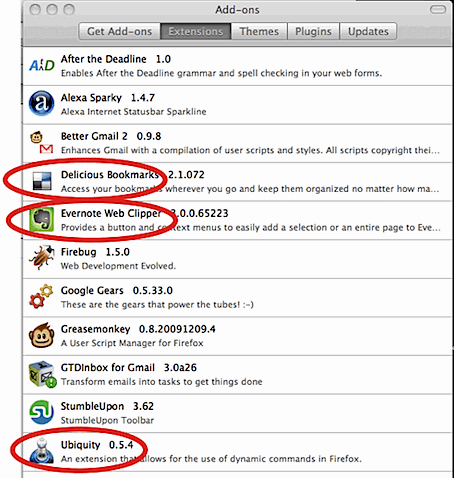
Before I added the Quix Bookmarklet to FireFox, I was running the following extensions: Ubiquity, Evernote Clipper, Delicious (among others).
I was able to uninstall them completely. This took two buttons off my toolbar and cut back on some ram. Not all of the big five browsers use extensions, but most support them in some form, so this will have a similar effect there too.
Removing Unnecessary Greasemonkey Scripts
One of the most handy FireFox extensions is Greasemonkey. Greasemonkey allows you to customize the way a webpage works using small bits of JavaScript. There are thousands of Greasemonkey scripts available that help you get more from just about any popular website or service. While these may be incredibly useful, they do come at a small cost.
I was able to remove a few Greasemonkey scripts that I no longer needed.
Combining Several Bookmarklets into One Button
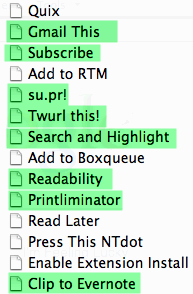
Bookmarklets don’t place any processing load on your browser when they are not being used, but they do take up space on your toolbar. I was able to remove the following highlighted bookmarklets from my toolbar and replace them with functions in Quix.
How to use Quix
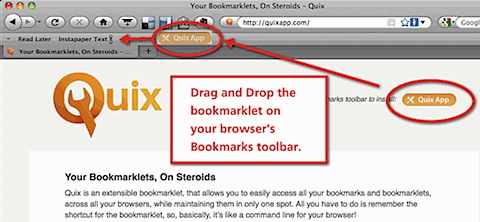
Just go to Quixapp.comand drag the Quix bookmarklet to your Bookmarks toolbar
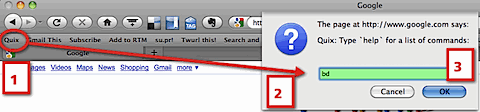
Click the Quix bookmarklet and type a short command (1 – 10 letters).
The command above (bd) will bookmark the current page to your Delicious account.
Overview: You will learn how to use Instapaper.com’s service to quickly clean, reformat, and save articles on the web to a convenient location for you to read later.
What is Instapaper?
When you are on the internet, you probably find important, interesting, or useful information. The problem is that just don’t have time to read it at that moment. With just one click, Instapaper reads, cleans, and stores the information for you to read at your convenience.
Allows you to easily save information from the web into a central location to be read later on in a clean, simple format.
Advantages of Using Instapaper
Here are some of the main advantages to using Instapaper:
Clean formatting for efficient reading experience (plain text and simple images)
Stores the URLs to the source material
Easily share your saved material
Great third party integration
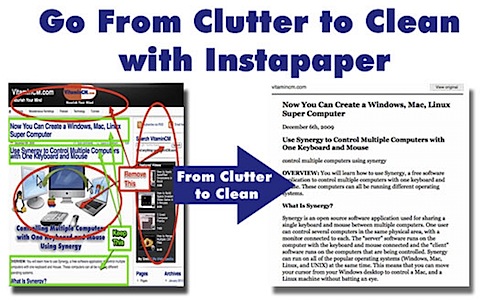
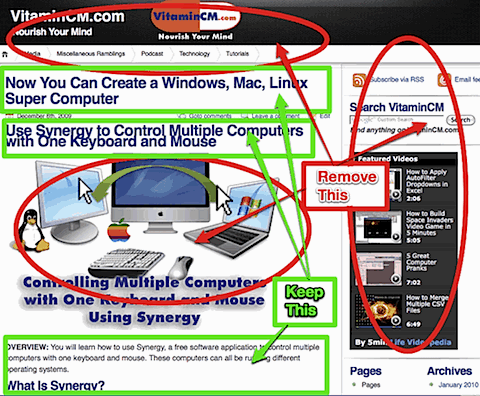
When you have a busy page (like the one below) that may have Headers, Footer, Sidebars, Ads, lot’s of media, and other distractions. It is not the optimum reading experience. This can be exacerbated by being on a mobile device or in a hurry.
Just click the Read Later bookmarklet and save a copy for later reading.
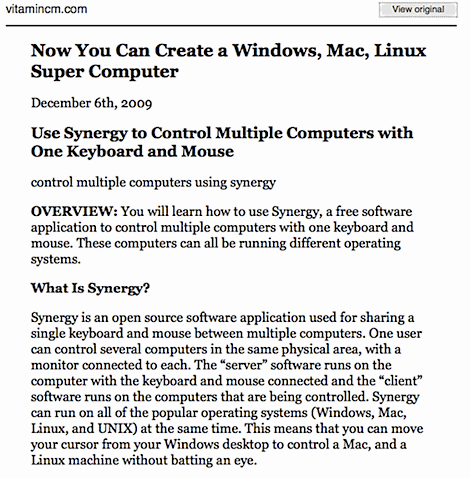
This is what the Instapaper version looks like. A little easier to read, don’t you think?
If you want to see the original page, just click the View Original button at the top of the page.
See How it Works
Here is the whole process:
Create an account at Instapaper.com
Add the Instapaper bookmarklet to our browser’s toolbar (Learn all about bookmarklets)
Enter your Instapaper credentials
Click the bookmarklet when you find a page that you want to read later
Go to Instapaper and read your stuff
See Instapaper in Action in the Video Tutorial Below
Where you can Use Instapaper
You can use the Read Later bookmarklet in any desktop or mobile browser that supports bookmarks.
Many Twitter clients for iPhone have it built right in.
RSS Readers like Google Reader and some desktop readers.
There are a few other services that offer similar features out there.
ReaditLater uses a Firefox plugin to save pages to a location where they can be read at your leisure. They have an iPhone app too.
Readability is another tool that works through a bookmarklet to strip out distractions and give you a cleanly formatted page to read.
For the old school types out there, you can try the PrintWhatYouLIke bookmarklet and send a stripped down, clean page to your printer that you can read later.
PrintLiminator does a similar trick and works really nicely.
What’s Your Favorite Tip?
If you have any other tips for cleaning and saving content from the web for reading later, I would love to hear them. Shout it out in the Comments below.
OVERVIEW: You will learn how to install dozens of awesome, free applications on your computer in 5 simple steps. No money, 200 Point IQ, or Back-Breaking Labor required!
Once you get past the excitement of getting a new computer, then the aggravation sets in. You have to download and install all of the software that you need. This can take hours and hours even if you’re organized.
You can spare yourself so much of the pain involved with this process by using a bulk software installation tool. I recently found a tool that creates an installer that automates the process of installing multiple applications.
Ninite.com gives you a selection of close to 100 free or open source applications that can be added to a 1-click installer. Some of these are my absolute favorite apps of all time. (Firefox, Skype, Digsby, Notepad++, DropBox, Evernote, and many more.)
Follow the steps below to create and run a Bulk Software Installer.
You will be able to select from a large collection of free/open source applications that are grouped into several categories.
Select the checkbox next to all of the applications that you want to include in your installer.
After you select all of the applications that you want to include in your installer, scroll to the bottom of the page and click the button.
You will see the Download page. This page will display all the icons for all of the applications that you selected for inclusion in the installer. The click here to change apps link will return you to the previous page, where you can add or remove applications.
Your download should begin automatically. Use the click here to retry the download link if your download does not begin right away.
You can use the permanent link to get a link to the installer download page. This is convenient if you want to share this collection of apps with other users or computers.
Installing Your Collection of Applications
You can either save the installer file to your computer and launch it, or let it run automatically from your browser.
Saving the Installer to Your Computer
The installer’s file name will include the applications that you selected.
Double click the installer file when it has finished downloading.
Automatically Running the Installer When it Finishes Downloading
If you elected to automatically run the installer when the download finishes, you will see the following window.
Click the button to launch the installer.
This is actually the last action that you are absolutely required to take. Everything else runs on its own.
Monitoring the Installation Process
The installer file does not actually contain each applications installation files. It downloads them when it is run.
Click the Show details link to monitor the progress of your installation process.
You will see the list of applications that you included in the installer. You will be able to follow along and see which applications have been downloaded and installed.
When all of your applications have been installed, you will see the following confirmation.
Click the button to exit the installer.
That’s it, all of your applications are installed and working as if they were each installed manually.
The following video tutorial shows how to Install Multiple Applications using a Bulk Software Installer.
What Applications Do I Bundle?
I put a huge list of applications by category at the bottom of this article. (I didn’t want to break up the flow with a huge list.) You can also check out one of my lists of my favorite free applications:
What Applications Would You Put in your Installer Bundle?
I would love to hear what you think. Let me know what applications would you include in a Bulk Software Installer in the comments below. (List OS, then Apps.)
List of Suggested Applications to Include
Here is a list of some of the availabe applications that I highly reccomend:
Build a USB Rescue Drive with Free Portable Utilities
OVERVIEW: This video tutorial shows how to set up a collection of portable apps on a USB drive that can be used to diagnose and repair almost any broken windows computer.
The Difference Between Men and Monkeys is Tools
During the holidays I typically spend a great deal of time travelling to see freinds and relatives. As you may have guessed, I frequently get asked to "fix" everybody’s jacked up computers. When I’m not at home with all of my resources, it’s pretty hard to figure out what’s wrong and even harder to fix it. What if thier internet connection is down? There goes just about all of the things that you can download to fix any problems. These are the sort of catch 22′s that I’m usually up against.
Since I’m not about to carry my laptop and a bunch of other junk to a New Year’s Eve party, I decided to build myself a portable USB Rescue Kit that takes up no space in my pocket. Now, next time I get asked for help, I can spring into action, diagnose, and fix thier PCs in time to see the big ball drop. If you’re the "computer guy or gal" in your family, you can prepare yourself to handle these situations by investing about $10 and 30 minutes of your time building your own kit.
There are a few great sites that have all of the applications on this list and plenty of others.
PortableApps.com has a great suite of applications and a very nice launcher tool that basically makes your portable suite into its own operating system.
LiberKey.com has a 270+ applications in their extensive catalog. If you can’t find the right tool here, it probably doesn’t exist.
PenDriveApps.com has a large, albeit poorly organized collection of useful application and utilities.
The following video will show you how to install and configure your USB Rescue Kit.
What to do After Everything is Fixed
After you get that nasty mess cleaned up, you may want to do a little preventative maintenance. Set up this newly healthy machine with a few good tools:
Antivirus Protection (AVG or Avast)
A Good Browser (Firefox, Chrome, or Opera)
Malware Protection (Spybot Search and Destroy, Malwarebytes, Microsoft Security Essentials)
PDF Tools (Foixt Reader and CutePDF Writer)
Safe P2P Downloading (uTorrent and eMule)
Zip Tool (7zip)
System Cleaner (CCleaner)
VNC Server (RealVNC so that you can connect to their machine and fix it later)
Before you balk at how much time this will take to set up, there is a great tool that will make this take just a few minutes. Ninite.com allows you to create a "batch installer" that will download and install dozens of great free applications in just a few clicks.
Set yourself up with a bulk installer of recommended applications and keep that on your USB drive to install once your done. Since they download the actual files at the time of installation the files will take up less than 200K on your drive.
My Holiday Gift to You
Here’s the prize for the diligent PC repairman who has read this far. On Christmas Eve (December 24th, 2009) I will select one random commenter to receive a 4 gig USB drive that I set up with everything mentioned in this article, plus a few extra goodies. The rules are simple: Just leave a comment about who you would help with this USB Emergency Kit. Good luck to all!!!
Leave Yourself Voicemails that Are Instantly Transcribed to Text
OVERVIEW: This video tutorial shows how to use Google Voice to convert your speech to text that can be used in other applications. Use the feature that converts voicemail audio to text.
The Best Voicemail System Ever
Once you see the iPhone’s Visual Voicemail, you realize how cool it is. Well, Google Voice has actually one-upped them by adding the new voice transcription feature to what is already an incredible voicemail system. The audio for all of your messages is saved in an inbox that works just like an email inbox. This alone is pretty cool, but then they convert the message to text and put it in your inbox too. When you click the play button to hear the voicemail, the transcribed text is highlighted in sync with the audio. The words that are in black text are usually perfect, while the ones in gray are 50/50. They also send the text to your email, so that you can read the message without having to play it. This cuts hours and hours of blah, blah, blah time out of your life.
I have been using this feature when I come up with "good" ideas while I’m on the go. I just call my Google Voice number from my mobile phone and leave my idea as a message. Then, when I get home, I just copy and paste the transcribed text into Word, an Email, or whatever other application are applicable.
How to Use Google Voice’s Text Transcriptions with Other Apps
Just log in to your Google Voice account and go to the Inbox.
Once you call your Google Voice number and leave a voicemail, it will be saved in your inbox as an audio file. Google’s severs will also convert the audio in the voicemail to text.
The length of the voicemail will be displayed next to the Play button. The words that are in gray text (not black) are ones whose accuracy is "questionable". You should double-check them for accuracy.
When you click the play button, the text gets highlighted in green along with the audio. (This is actually pretty cool.)
Now that your voicemail has been converted to text, you can copy and paste it into any application that you want.
See How it’s Done
The following video tutorial shows how to use the Google Voice audio transcription feature to use your messages as text.
While this is a cool feature, it is FAR from perfect. I’m sure that there will be tweaks and upgrades down the road, but I’m really impressed with its humble beginnings. I would love to see some vocal training or learning features added, sort of like Dragon Naturally Speaking has had for years.