Post Tagged with: "Software"
Office 2011 for Mac Sneak Preview
Works Just Like Office, but on a Mac
Overview: Microsoft Office for Mac suite is being updated for 2011. This is an overview / preview of the notable new features.
Product: Microsoft Office 2011 for Mac
Price: Not announced yet
Availability: Some time in 2011
Finally, a Good Reason to Install Office on a Mac
If you have ever tried to work with Office files on a Mac, you know it can often be a frustrating experience. Microsoft has made a version of their Office suite (Microsoft Office for Mac ) for Mac users for a while now. That however, does not mean it’s the same as using Office on a PC. It’s just not! Sure, there are other options available; Open Office (free), Apple iWork
($75), or some of the web-based options like Google or Zoho. While they are all “acceptable” and have their merits, they’re just not Microsoft Office
on a PC.
I have been very vocal about how much I hated Office 2008 for Mac and have used many terrible workarounds to overcome its lousy user experience. So when I heard that there was a beta preview for Office 2011 for Mac floating around I had to take a look. First off, as of today (May 10, 2010) you can’t officially get a copy from Microsoft’s website. It is supposed to be more widely available some time this summer. As for how I got a copy to test…. Don’t ask, don’t tell. Seriously, if you hunt around on your favorite torrent sites, you will find a perfectly functional demo copy to try out.
So how good is it? Let’s take a look.
Look and Feel
The most prominent thing about this version of Office for the Mac is the addition of the “Ribbon” which was introduced in Office 2007 for Windows. It was not added to Office 2008 for Mac. This is a wonderful addition to the software. Not only do you get the benefits of the Ribbon, you still get the standard Mac menu across the top of the screen. I wish that the Windows version had a better blend of the Ribbon and Menu system.

As you can see, it is very similar to Office 2007. Plus, if you double-click on any of the tabs, they will collapse to give you more screen real estate. Just double-click again to restore the menu.
This is a very nice overhaul.
If you take a look at the Excel interface, you can see that it looks like regular old Excel, not that unusable abomination in Office 2008.

Welcome to my home computer old friend.
Cool New Features
Other than the interface overhaul, the best update to the suite is that piece of crap Entourage has been thrown into the dungheap where it belongs and replaced with….. Wait for it….. Outlook!!! Thank god. As a Windows user who converted to a Mac a while back, I can’t stand any of the iCal, Address Book, or Mail applications on my Mac.

This version of Outlook works just like you would expect. Major improvement!
There are also several nice little additions to all of the apps. They expanded upon the SmartArt, Templates, and Themes available to allow you to make any documents look beautiful.

- The “Ribbon” interface works great
- Real Excel that really works
- Microsoft Outlook instead of Entourage
- Works just like Office for Windows, but with cool Mac stuff in there
- Still a quarter of a step behind the Windows version
- It won’t be cheap
What I Would Change
The Windows 2010 preview had a really nice screenshot feature on the Insert tab of each application that would have been great here too. I would have liked it if the Ribbon tabs were more “identical” between the Windows and Mac version as I switch back and forth between machines daily. All-in-all, these are some minute nit picks though.
Overall Rating
I would rate the Microsoft Office 2011 for Mac suite about a 9.75 out of 10. This is about as good as it gets. Everything you need from Office with everything you love about your Mac.
Bravo!!!
Is it Upgrade Worthy?
If you need to do any work in Excel, PowerPoint, or Word; you MUST purchase this update as soon as it goes on sale. This is such a significant upgrade over any previous version of Office for Mac, or iWork, or Open Office that it is worth every penny.
See Office 2011 for Mac in Action
This video overview shows the beta of Microsoft Office 2011 for Mac and covers some of the major changes.
Don’t Take My Word for It
Here are a few other reviews of this beta preview:
-
Download Microsoft Office 2011 For Mac Beta 2 14.0.0.100326 Leaked
-
Microsoft stepping closer to Mac Office 2011 with Messenger Beta
-
Microsoft announces Office for Mac 2011 | Software | Working Mac
-
First Screenshots of Microsoft Office for Mac 2011 Surface – Mac
-
Microsoft Office 2011 for Mac Gets Undressed – Mac office 2010
-
Microsoft Office 2011 for Mac screenshots leaked
-
Microsoft debuts Office for Mac 2011 | MacNN
Take a Look at My Review of the New Office 2010 for Windows
Wanna make sure that you don’t miss anything?
Get free updates from VitaminCM.com

Or just
Follow me on Twitter, where I am constantly sharing great articles written by people WAY smarter than me. Or, see some of the other places where you can connect with me out there in the wilds of the internets.
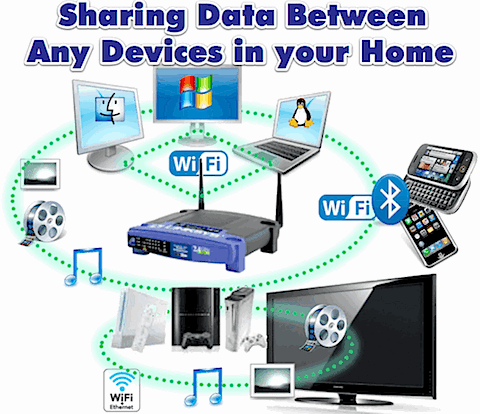
Share Files Between Any Devices in your Home
Learn How to Tie All of your Gadgets Together
You Can Get there from Here
Your home has any number of “connected” devices (Computers, Video Game Consoles, Phones, Portable Media Players, Televisions, DVRs, etc.). Are they all really connected? This three part tutorial series will show you how to connect all of the devices in your house to each other.
I will show you some simple (and some not so simple) steps to get all of your devices singing in perfect harmony including:
- Part 1 - Share Files Between All of your Computers
- Part 2 - Stream Computer Media to the TV using Video Game Consoles
- Part 3 - Sharing Between your Smartphone and Computer
Sharing Files on your Computers
You will learn how to share your files between Windows, Mac, and Linux computers on your home network. Once you have the files on all of your machines shared, you need to connect to them from another machine. You will also learn how to “map” these shared drives so that they are always available, just like your computer’s local Hard Drive or CD/DVD Drive. Share Files Between All of your Computers
Connecting your Computer to your Living Room
You will learn how to stream all of the music, photos, and videos on your computers to your living room using your video game console. There are instructions for Microsoft Xbox 360, Sony PlayStation 3, and Nintendo Wii. You will see how to connect WIndows, Mac, and Linux machines to all three gaming systems. Stream Computer Media to the TV using Video Game Consoles
Connecting your Smartphone to your Computer
You will learn how to stream music, photos, and videos from your computer to your smartphone. You will also learn how to use your smartphone to control your computers and schedule recordings on your DVR. Sharing Between your Smartphone and Computer
5min.com Video of the Day
Wanna make sure that you don’t miss anything?
Get free updates from VitaminCM.com

Or just
Follow me on Twitter, where I am constantly sharing great articles written by people WAY smarter than me. Or, see some of the other places where you can connect with me out there in the wilds of the internets.
Bring Excel Data to Life with Conditional Formatting
Data that Tells a Story
OVERVIEW: Learn how to use Microsoft Excel 2007′s advanced conditional formatting features to take your boring data and make it tell a more interesting story.

Boring Data Be Gone!
Have you ever created a spreadsheet that tracks a lot of important data? This data may have a lot to say, if you help it. Excel 2007 has some advanced Conditional Formatting features that allow you to use the values in cells to create visually informative displays that add more useful context to your information.
Take a look at the spreadsheet below. It lists the amount of fruits sold on each day of the week. There are a lot of numbers there and it might be kind of hard to spot any useful trends.

Let’s take a look at how we can use conditional formatting to identify things like: the biggest selling items on any day, the top, middle, and bottom sellers, use color shadings to indicate where each product ranks.
Accessing the Conditional Formatting Menu
Click the Conditional Formatting icon on the Home tab of the Excel Ribbon.

You will see a menu with a list of Conditional Formatting options.

Let’s take a look at what these options can do.
Highlighting Cells with Specific Values
Click Conditional Formatting> Highlight Cell Rules> Greater Than.
A pop-up menu will open allowing you to enter the Greater Than amount and the formatting style.

In the example above, all cells whose value is greater than 500 were turned light red with dark red text. You can modify either of these settings. The other Highlight Cell Rules options work similarly.
Dynamically Highlighting Cells Using Top and Bottom Rules
You can highlight cells with values in the top or bottom “X” percent or “X” values in a range.
Click Conditional Formatting> Top/Bottom Rules> Top 10%.
A pop-up menu will open allowing you to enter the Percentage and the formatting style.

In the example below, the cells whose value is in the top 10% of the range were turned light red with dark red text. You can modify either of these settings. The other Top/Bottom Rules options work similarly.

Using Data Bars to Graphically Display Values
You can fill the cells in a range with data bars that are sized according their values.
Click Conditional Formatting> Data Bars and select a bar color.
Excel will find the highest and lowest values in the range and fill each cell accordingly with a colored bar.

Formatting the Cells in a Range Using Color Scales
You can use scales of color to highlight all of the cells in a range. You have a choice of shades of two or three colors.
Click Conditional Formatting> Color Scales and select your color set.
In the example below, the range of cell values were identified by the top, middle, and bottom thirds. The thirds were colored Red, Yellow, and Blue. Then, the values in each third were made darker or lighter depending on how close to the floor or ceiling of their ranges.

Identifying Cell Values Using Icons
The previous formatting option is often referred to as “stoplight” formatting (red, yellow, green). If you want to take it even more literally, you can place icons next to cell values.
Click Conditional Formatting> Icon Sets and select an icon type.
In the example below, the range of cell values were identified by the top, middle, and bottom thirds. The values in each third were identified by a red, yellow, or green icon.
![]()
There are several useful icons that you can use to identify your data set.
![]()
The other cool option that you can do is filter values based on their icon (meaning which section of the data range the values belong).
- Go to theData tab
- Click the Filter icon
- Click the Filter Arrow at the top of the column that you want to filter
- Select Filter by Color
- Choose the icon that identifies the slice of the range that you want to filter on
You will see all of the values that have icon that you selected.

This is a pretty handy way to see the top sellers or worst performers in a range.
Video Tutorial Showing How to Use Conditional Formatting in Excel
Play the video below to see all of the options in action.
How to Use Conditional Formatting in Excel from Christopher Masiello on Vimeo.
Did you like this article?
Then why not
Follow me on Twitter, where I am constantly sharing great articles written by people WAY smarter than me. Or, see some of the other places where you can connect with me out there in the wilds of the internets.
85 Free Apps that will Save you Thousands of Dollars
Save Tons of Cash with the Best Free Software OVERVIEW: You can replace the most expensive applications on a typical computer with excellent, free software and internet services and never miss a beat. Why Pay More? Equipping your computer with the software that you need to get everything done can be insanely expensive. However, you [...]
Read More »Stuff I Like
Things That Don’t Suck
Making Life a Little Nicer
Sometimes I find myself complaining about things that frustrate me. Well, it’s actually pretty easy to find things that suck, but I decided to take some time to talk about a few things that have been making me particularly happy lately.
Instaper – This is a simple tool to save web pages for reading later. If you see a page, article, story, or whatever that you don’t have time to read now, you can tuck it away to be read later. You can go back and read your saved stuff later on either your computer, iPhone, Kindle, or even good old fashioned paper. Plus, you can send pages to Instapaper from your browser, RSS reader, Twitter apps, and a bunch of other places.
Netflix Streaming for PS3 – You can instantly stream movies from Netflix to your TV via your PlayStation 3. The best part about it is that the movie starts instantly. That’s right, no stupid credits. I spent two straight days home sick from work recently. I don’t’ think I would have made it without the dozen movies that I watched.
PixelPipe – When I create videos for my tutorials/podcast, I need to upload them to multiple places on the web. PixelPipe allows me to load my videos, images, and updates to accounts on dozens of sites. (YouTube, Twitter, Facebook, MySpace, Vimeo, and many, many more.) If you have a lot of videos, images, or updates to make, this service will save you more time than you can imagine.
My New Moleskine Notebook – I got this notebook from the team at Automattic for volunteering at the WordCampNYC conference. It’s just the right size for me to carry it everywhere. It has a nice little pocket in the back to hold business cards, scraps of paper, and other stuff. I use it to plan projects, articles, and other tasks.
Get your own awesome Moleskine Notebook.
Windows 7 – I decided that I needed to upgrade to WIndows 7 so that my tutorials were more up-to-date. I started off by installing a new Parallels Virtual Machine on my Mac. First of all, this is easily the best OS that Microsoft has put out. It’s prettier than Vista and as light as XP. My wife needs a new laptop and I can’t wait to set up a full-fledged machine running Windows 7. Nice job Microsoft!
Applications that run on Windows, Mac, and Linux – Being that I’m constantly switching between Operating Systems and it is really helpful to have a few applications that are supported on each. This really eases the transitions. Some of my favorite are: Firefox, Filezilla, Picasa, VLC, and any Adobe AIR apps.
Google Voice – I love the new Voicemail text transcription feature. Isn’t that enough?
Movies in 2D – Because 3D is just retarded! I’m looking at you Avatar. (and Coraline, and the upcoming Alice in Wonderland travesty.)
5min.com Video of the Day
Subscribe to VitaminCM.com for Free
Get free updates from VitaminCM.com


Subscribe via
Subscribe via YouTube
Subscribe via iTunes
Friend me on StumbleUpon
Friend me on Facebook
Friend me on Digg.com
Share bookmarks on Delicious
Share music with me on Last.FM
Share pictures on Flickr![Reblog this post [with Zemanta]](http://img.zemanta.com/reblog_e.png?x-id=59367c2f-aca2-462a-a355-1870b94ee212)


Recent Comments